
Use Windows .cur and .ani Cursors on Mac
A Windows cursor pack does not work on macOS by itself.Cursie reads .cur and .ani files, matches them to Mac cursor roles, and lets you check the result before applying it.
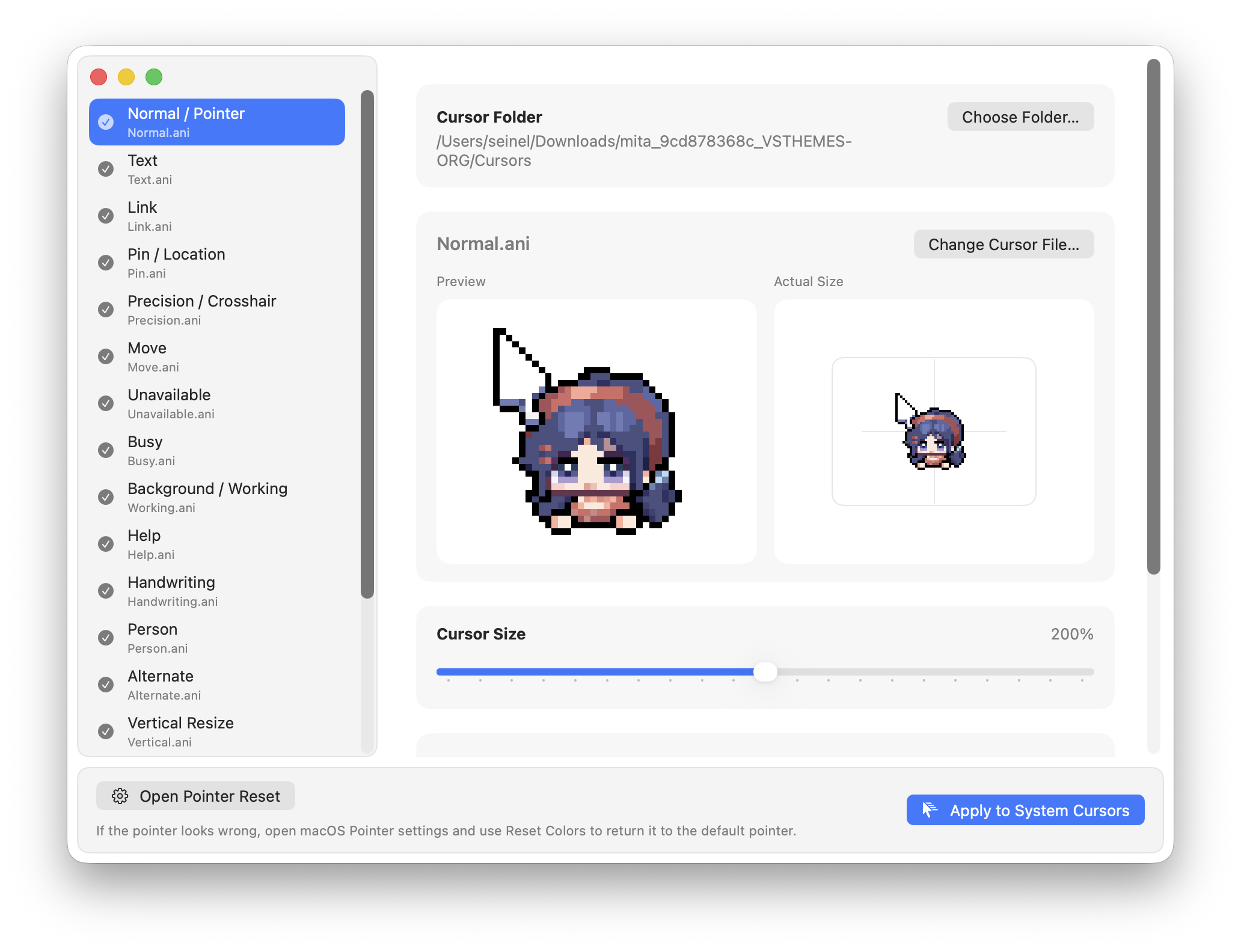
What .cur and .ani files contain
A .cur file is a static Windows cursor. It can contain several image sizes so the pointer stays sharp at different display scales. An .ani file contains an animated cursor with multiple frames and timing information.
macOS does not offer a built-in importer for either format. Cursie converts their images and hotspot—the exact pixel used for clicking—into a form the macOS cursor system can use. Animated .ani files can be previewed in motion before they are applied.
Import and apply a Windows cursor pack
- Download and install CursieOpen the signed and notarized DMG, then move Cursie to Applications.
- Open the cursor packDrag the folder into the window, or select individual
.curand.anifiles. - Review the automatic mappingMove through the preview list and check the normal arrow, text, link, busy, and resize roles.
- Correct anything that is missingSelect a role and choose the right file manually. This is useful when a pack uses unusual filenames.
- Apply the finished setApply once you are happy with the preview. The cursor stays active after Cursie quits.
How cursor filenames are matched
Cursie recognizes common names used by Windows cursor packs. The exact filename can vary; these are typical examples rather than a required naming scheme.
| Names often found in a pack | macOS cursor role |
|---|---|
| Normal, Arrow | Default arrow |
| Text, IBeam | Text selection |
| Link, Hand | Clickable link |
| Busy, Wait, Working | Busy or background activity |
| Horizontal, Vertical, Diagonal | Window and column resizing |
| Move, Unavailable, Cross | Move, forbidden, or crosshair |
If a file lands in the wrong place, replace that role manually. Renaming the original pack is not necessary.
Common import problems
The folder opens, but some roles are empty
The pack may use filenames that do not describe their purpose, or it may simply be incomplete. Assign the files manually and leave any unwanted role unchanged.
An animated cursor looks different from Windows
Windows packs can include unusual frame timing or repeated frames. Check the in-app preview; malformed or excessively large files may be skipped so they do not block the rest of the pack.
The cursor changes in one app but not another
Some apps cache the pointer already on screen. Move the pointer into another window, switch apps, or reopen the affected app to force a refresh.
Return to the default Mac cursor
Choose Reset Default Cursor in macOS Settings in Cursie. In the Pointer settings that open, click Reset Colors. Cursie opens the correct macOS panel and disables automatic reapply; macOS performs the actual reset when you click its button.