
How to change your cursor on Mac
macOS can change the pointer size, outline, and fill color without another app.To replace the arrow itself, use a cursor app such as Cursie to import a custom pack.
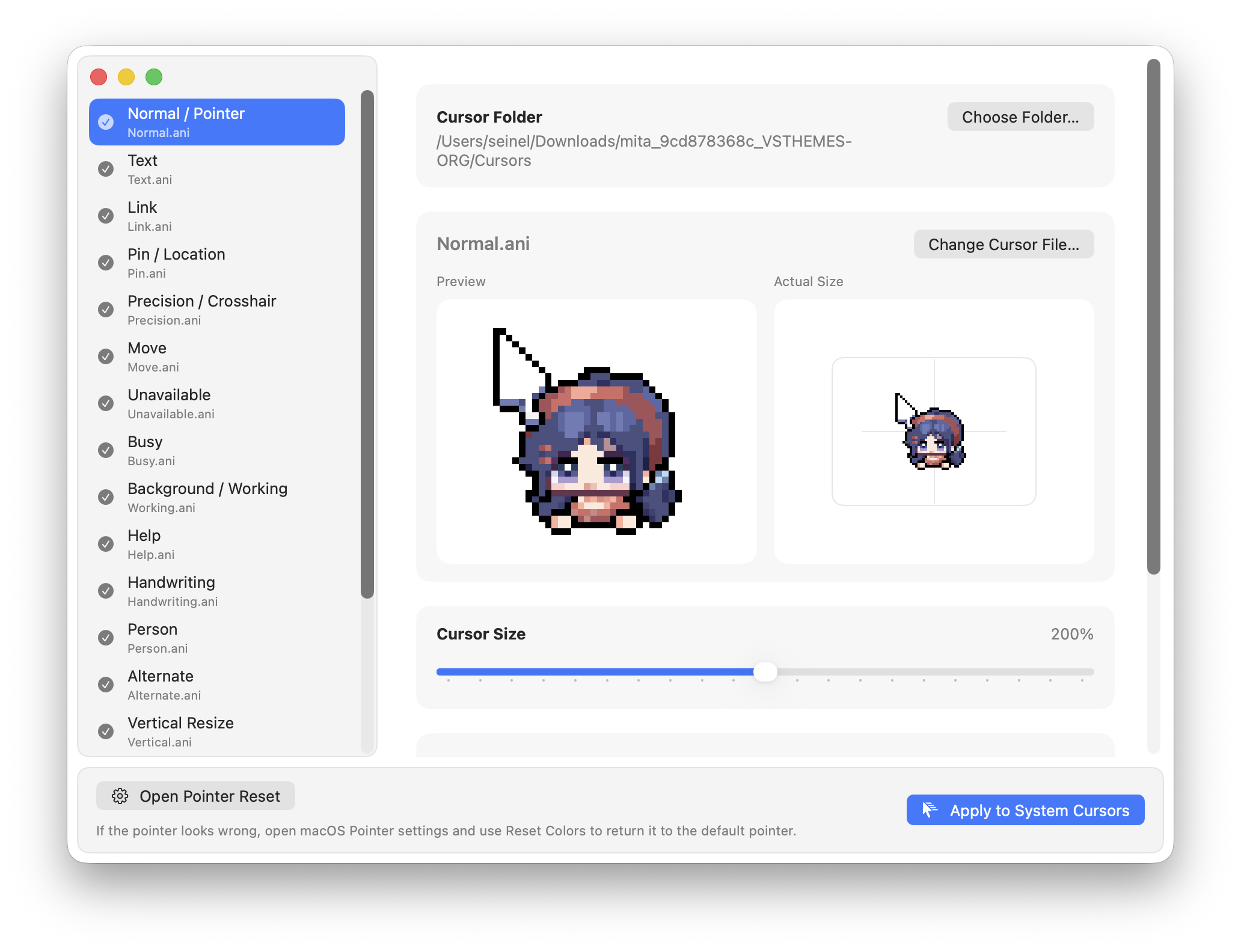
Change your Mac cursor without an app
If you want a bigger pointer or a different color, start with macOS settings. These controls work with a MacBook trackpad as well as a mouse.
- Open the pointer settingsChoose Apple menu → System Settings → Accessibility → Display, then scroll to Pointer.
- Adjust the sizeMove the Pointer size slider until the pointer is easy to see.
- Choose the colorsSet Pointer outline color for the edge and Pointer fill color for the inside. Use Reset Colors to return to the original colors.
You can also enable “Shake mouse pointer to locate” to make the pointer temporarily bigger when you move your mouse or finger quickly back and forth. See Apple’s pointer settings guide.
Want a different cursor shape or animation?
The settings above change size and color; they do not import cursor artwork. For a different arrow, text-selection, link, busy, or resize cursor, Cursie can import Windows .cur and animated .ani files.
Cursie requires macOS 15 or later and supports Apple Silicon and Intel Macs. The macOS requirement applies to Cursie, not to the built-in pointer controls above.
Apply a cursor pack with Cursie
- Install CursieOpen the DMG and move Cursie to your Applications folder.
- Import a cursor packDrop in a folder containing
.curor.anifiles, or select individual files. - Review the mappingsCursie uses names such as Normal, Text, Link, and Busy to match cursor roles. You can replace any incorrect match manually.
- Preview and applyCheck the shape and animation, then click Apply. You can close Cursie after the cursor pack is active.
Restore the default macOS pointer
In Cursie, choose “Reset Default Cursor in macOS Settings.” When the Pointer settings open, click “Reset Colors.”
Cursie disables automatic reapply and opens the correct settings panel. The final reset is completed in macOS, so opening the panel alone does not immediately restore the default pointer.
If a cursor does not change
Only some cursor roles changed
The pack may not contain that role, or its filename may not identify the role clearly. Select the empty role in the preview and choose the file manually.
The pointer briefly changes back in another app
Some apps cache the cursor they were already displaying. Moving to another window or reopening the app usually refreshes it.
An .ani animation looks different from Windows
Files with unusual frame timings or repeated frames can play differently. Check the animation in Cursie before applying it.
Which cursor files can you use on a Mac?
A .cur file stores a still cursor. An .ani file stores an animated cursor. If a download arrives as a ZIP archive, extract it first and import the folder containing those files into Cursie.
A Windows installer is not a Mac cursor pack: you do not need to run an .exe or install an .inf file. Use the cursor files inside the pack instead, and check the creator’s license before redistributing their artwork.
A browser-only cursor change and a system cursor change are different. A webpage can display its own cursor while you hover over it; that does not install the same cursor in Finder or other Mac apps.